Proxmox USB backup
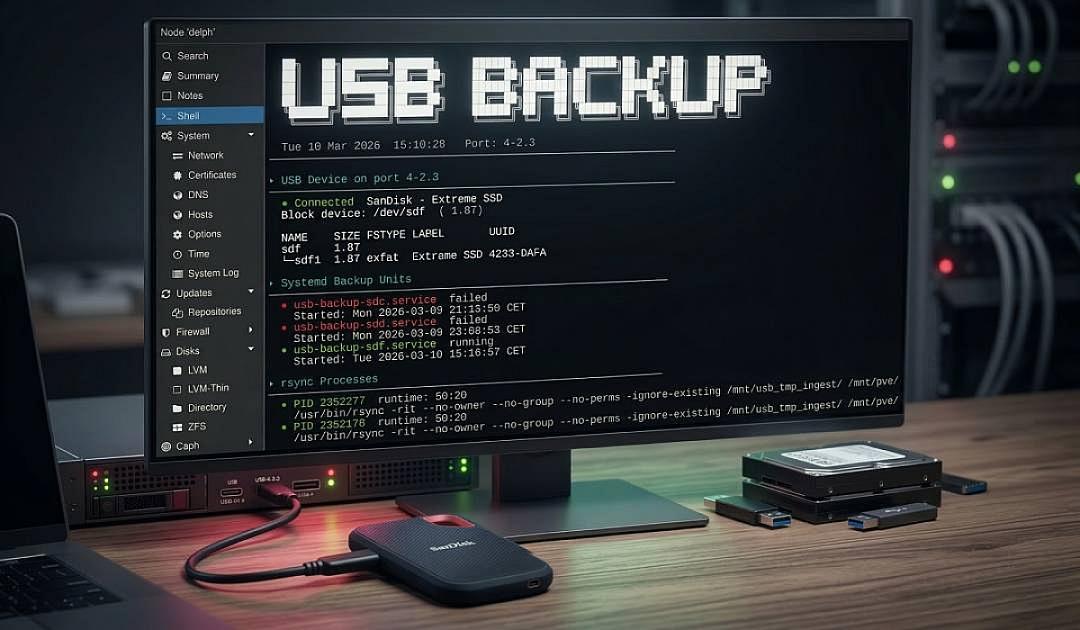
Learn how to automatically back up any USB disk plugged into a specific port on Proxmox using udev, systemd-run, and rsync. Supports NTFS, exFAT, and ext4 — with a live status dashboard to monitor progress.
Claus Munch
Mar 10, 2026 · 1 min read
Automatic USB Backup to NAS on Proxmox with udev
When you plug a USB disk into a specific port on your Proxmox host, it automatically backs up all partitions to your NAS — no interaction needed. This guide walks through the full setup: a udev rule that detects the physical USB port, a backup script that handles NTFS/exFAT/ext4 partitions via rsync, optional push notifications, and a status dashboard so you can see what's going on at a glance.
How It Works
A udev rule watches for any block device appearing on a specific physical USB port
It fires a systemd unit (via
systemd-run) that runs the backup script in the backgroundThe backup script mounts each partition read-only, rsyncs the contents to your NAS, logs everything, and sends push notifications at key points
A status script gives you a live at-a-glance dashboard of the whole process
Everything runs directly on the Proxmox host — no LXC container required.
Prerequisites
Proxmox VE host (tested on PVE 8)
NAS mounted on the Proxmox host (e.g. via NFS/SMB via
/etc/fstab)rsync,ntfs-3g,lsblk,udevadminstalled (all present by default on Proxmox/Debian)
Step 1 — Find Your USB Port Path
Plug in any USB device to the port you want to dedicate to backups, then run:
lsusb -t
You're looking for the port path in Bus X → Port Y → Port Z notation. Example output:
/:  Bus 04.Port 1: Dev 1, Class=root_hub, Driver=xhci_hcd/2p, 10000M
    |__ Port 2: Dev 2, If 0, Class=Hub, Driver=hub/4p, 5000M
        |__ Port 3: Dev 14, If 0, Class=Mass Storage, Driver=uas, 5000M
This device is on Bus 4, through a hub on Port 2, into Port 3 — giving the path 4-2.3.
Confirm by checking:
ls /sys/bus/usb/devices/ | grep "4-2.3"
Note your port path — you'll use it in the udev rule below.
Step 2 — The Backup Script
Create the file:
nano /usr/local/bin/usb_backup.sh
Paste the following:
#!/bin/bash
# --- CONFIGURATION ---
NAS_ROOT="/mnt/pve/MYNAS"           # ← Change to your NAS mount point
NAS_BACKUP_DIR="$NAS_ROOT/usb-backup"
TEMP_MOUNT="/mnt/usb_tmp_ingest"
LOG_FILE="$NAS_BACKUP_DIR/backup_history.log"

# --- NOTIFICATIONS ---
# Uncomment and fill in ONE provider, leave the others commented out.

# Discord
#DISCORD_WEBHOOK="https://discord.com/api/webhooks/XXXXXXXXX/XXXXXXXXX"

# Telegram
#TELEGRAM_TOKEN="XXXXXXXXX:XXXXXXXXXXXXXXXXXXXXXXXXX"
#TELEGRAM_CHAT_ID="XXXXXXXXX"

# Ntfy (self-hosted or ntfy.sh)
#NTFY_URL="https://ntfy.sh/your-topic"
# --- --- --- --- --- ---

# ── Notification function ─────────────────────────────────────────────────────
notify() {
    local MESSAGE="$1"

    if [ -n "$DISCORD_WEBHOOK" ]; then
        curl -s -X POST "$DISCORD_WEBHOOK" \
            -H "Content-Type: application/json" \
            -d "{\"content\": $(echo "$MESSAGE" | python3 -c 'import json,sys; print(json.dumps(sys.stdin.read()))')}" \
            > /dev/null
    fi

    if [ -n "$TELEGRAM_TOKEN" ] && [ -n "$TELEGRAM_CHAT_ID" ]; then
        curl -s -X POST "https://api.telegram.org/bot${TELEGRAM_TOKEN}/sendMessage" \
            -H "Content-Type: application/json" \
            -d "{\"chat_id\": \"${TELEGRAM_CHAT_ID}\", \"text\": \"${MESSAGE}\"}" \
            > /dev/null
    fi

    if [ -n "$NTFY_URL" ]; then
        curl -s -X POST "$NTFY_URL" \
            -H "Content-Type: text/plain" \
            -d "$MESSAGE" \
            > /dev/null
    fi
}
# ── End notification function ─────────────────────────────────────────────────

sleep 2  # Give kernel time to enumerate partitions after plug-in

PARENT_DEV="$1"

if [ -z "$PARENT_DEV" ]; then
    echo "ERROR: No device name provided (e.g. sdb)."
    exit 1
fi

PARENT_PATH="/dev/$PARENT_DEV"

# Safety check: is NAS available?
if ! /usr/bin/mountpoint -q "$NAS_ROOT"; then
    MSG="❌ USB Backup FAILED — NAS ($NAS_ROOT) is not mounted. Device: $PARENT_PATH"
    echo "$(date): ERROR - NAS ROOT ($NAS_ROOT) not found." >> /var/log/usb_backup_error.log
    notify "$MSG"
    exit 1
fi

/usr/bin/mkdir -p "$NAS_BACKUP_DIR"

echo "------------------------------------------" >> "$LOG_FILE"
echo "$(date): Starting backup of: $PARENT_PATH" >> "$LOG_FILE"

# ── Collect disk-level info (variables reused in .info files below) ───────────
VENDOR=$(cat /sys/block/$PARENT_DEV/device/vendor 2>/dev/null | tr -d ' ')
MODEL=$(cat /sys/block/$PARENT_DEV/device/model 2>/dev/null | tr -d ' ')
SERIAL=$(udevadm info --query=property --name="$PARENT_PATH" 2>/dev/null \
    | grep "^ID_SERIAL_SHORT=" | cut -d= -f2)
[ -z "$SERIAL" ] && SERIAL=$(/usr/bin/lsblk -dno SERIAL "$PARENT_PATH" 2>/dev/null)
SIZE=$(/usr/bin/lsblk -dno SIZE "$PARENT_PATH" 2>/dev/null)
TRAN=$(/usr/bin/lsblk -dno TRAN "$PARENT_PATH" 2>/dev/null)
PTTYPE=$(blkid -p -o value -s PTTYPE "$PARENT_PATH" 2>/dev/null)

DISK_LABEL="${VENDOR:+$VENDOR }${MODEL:-$PARENT_DEV}${SIZE:+ ($SIZE)}"

# ── Dump disk info to log ─────────────────────────────────────────────────────
{
    echo "  [Disk Info]"
    [ -n "$VENDOR" ] && echo "  Vendor     : $VENDOR"
    [ -n "$MODEL"  ] && echo "  Model      : $MODEL"
    [ -n "$SERIAL" ] && echo "  Serial     : $SERIAL"
    [ -n "$SIZE"   ] && echo "  Size       : $SIZE"
    [ -n "$TRAN"   ] && echo "  Bus        : $TRAN"
    [ -n "$PTTYPE" ] && echo "  Part.table : $PTTYPE"
    echo "  [Partitions]"
    /usr/bin/lsblk -o NAME,SIZE,FSTYPE,LABEL,UUID "$PARENT_PATH" 2>/dev/null \
        | sed 's/^/  /'
} >> "$LOG_FILE"
# ── End disk info ─────────────────────────────────────────────────────────────

# Find all partitions on the disk
PARTITIONS=$(/usr/bin/lsblk -ln -o NAME "$PARENT_PATH" | /usr/bin/grep -E "^${PARENT_DEV}[0-9]+")

# If no partitions, try the disk itself (formatted without partition table)
if [ -z "$PARTITIONS" ]; then
    PARTITIONS="$PARENT_DEV"
fi

PART_COUNT=$(echo "$PARTITIONS" | wc -w)
notify "💾 USB Backup started — $DISK_LABEL — $PART_COUNT partition(s) found"

SUCCESS_COUNT=0
SKIP_COUNT=0
FAIL_COUNT=0

for PART in $PARTITIONS; do
    DEVICE="/dev/$PART"

    # Use UUID as folder name
    UUID=$(/usr/bin/lsblk -no UUID "$DEVICE" | /usr/bin/tr -d ' ')

    # Fall back to serial + partition name if no UUID
    if [ -z "$UUID" ]; then
        SERIAL=$(/usr/bin/lsblk -no SERIAL "$PARENT_PATH" | /usr/bin/tr -d ' ')
        UUID="${SERIAL:-no-serial}-$PART"
    fi

    TARGET_DIR="$NAS_BACKUP_DIR/$UUID"
    INFO_FILE="$NAS_BACKUP_DIR/$UUID.info"

    # Collect partition-level info
    PART_SIZE=$(/usr/bin/lsblk -dno SIZE "$DEVICE" 2>/dev/null)
    PART_FS=$(/usr/bin/lsblk -dno FSTYPE "$DEVICE" 2>/dev/null)
    PART_LABEL=$(/usr/bin/lsblk -dno LABEL "$DEVICE" 2>/dev/null)

    # Write/update .info file in backup root alongside the backup folder
    {
        echo "Last seen  : $(date)"
        echo ""
        echo "[Disk]"
        [ -n "$VENDOR" ] && echo "Vendor     : $VENDOR"
        [ -n "$MODEL"  ] && echo "Model      : $MODEL"
        [ -n "$SERIAL" ] && echo "Serial     : $SERIAL"
        [ -n "$SIZE"   ] && echo "Size       : $SIZE"
        [ -n "$TRAN"   ] && echo "Bus        : $TRAN"
        [ -n "$PTTYPE" ] && echo "Part.table : $PTTYPE"
        echo ""
        echo "[Partition]"
        echo "Device     : $DEVICE"
        echo "UUID       : $UUID"
        [ -n "$PART_SIZE"  ] && echo "Size       : $PART_SIZE"
        [ -n "$PART_FS"    ] && echo "Filesystem : $PART_FS"
        [ -n "$PART_LABEL" ] && echo "Label      : $PART_LABEL"
        echo ""
        echo "[Backup]"
        echo "Target     : $TARGET_DIR"
    } > "$INFO_FILE"

    /usr/bin/mkdir -p "$TEMP_MOUNT"

    # Mount read-only and rsync
    if /usr/bin/mount -o ro "$DEVICE" "$TEMP_MOUNT" 2>/dev/null; then
        /usr/bin/mkdir -p "$TARGET_DIR"
        echo "$(date): Copying $DEVICE ($UUID) to $TARGET_DIR" >> "$LOG_FILE"

        /usr/bin/rsync -rlt --no-owner --no-group --no-perms --ignore-existing \
            "$TEMP_MOUNT/" "$TARGET_DIR/" >> "$LOG_FILE" 2>&1
        RSYNC_EXIT=$?

        /usr/bin/sync
        /usr/bin/umount "$TEMP_MOUNT"

        if [ $RSYNC_EXIT -eq 0 ]; then
            echo "$(date): SUCCESS - $DEVICE done." >> "$LOG_FILE"
            echo "Last backup: $(date)" >> "$INFO_FILE"
            notify "✅ Backup complete — ${PART_LABEL:-$UUID} (${PART_FS:-unknown fs}, $PART_SIZE) → NAS"
            SUCCESS_COUNT=$((SUCCESS_COUNT + 1))
        else
            echo "$(date): ERROR - rsync exited with code $RSYNC_EXIT for $DEVICE" >> "$LOG_FILE"
            echo "Last backup: FAILED - rsync error $RSYNC_EXIT ($(date))" >> "$INFO_FILE"
            notify "❌ Backup FAILED — ${PART_LABEL:-$UUID} (rsync exit code: $RSYNC_EXIT) — check $LOG_FILE"
            FAIL_COUNT=$((FAIL_COUNT + 1))
        fi
    else
        echo "$(date): SKIP - Could not mount $DEVICE (unknown format or empty)." >> "$LOG_FILE"
        echo "Last backup: SKIPPED - could not mount ($(date))" >> "$INFO_FILE"
        notify "⚠️ Partition skipped — $DEVICE (${PART_FS:-unknown format}, could not mount)"
        SKIP_COUNT=$((SKIP_COUNT + 1))
    fi
done

echo "$(date): Finished $PARENT_DEV." >> "$LOG_FILE"

# ── Final summary notification ────────────────────────────────────────────────
SUMMARY="🏁 USB Backup finished — $DISK_LABEL
✅ $SUCCESS_COUNT succeeded  ⚠️ $SKIP_COUNT skipped  ❌ $FAIL_COUNT failed"
notify "$SUMMARY"
Make it executable:
chmod +x /usr/local/bin/usb_backup.sh
Key rsync flags explained
Flag | Reason |
|---|---|
| Recursive |
| Preserve symlinks |
| Preserve timestamps |
| Skip ownership — NAS shares (NFS/SMB) don't support chown and will error without these |
| Never overwrite files already on the NAS — safe re-run behaviour |
Disk info & .info files
On each run the script collects vendor, model, serial number, size, bus type, and partition table type from sysfs and udev. This gets written to the log, and also saved as a $UUID.info file in the backup root alongside each backup folder:
/mnt/pve/MYNAS/usb-backup/
├── 4253-DAFA/           ← the actual backup
├── 4253-DAFA.info       ← human-readable disk/partition metadata
└── backup_history.log
The .info file is overwritten on every run with a fresh timestamp, making it easy to see when a disk was last seen and what was backed up.
Step 3 — Setting Up Notifications (optional)
The script supports three providers. You only need to configure one.
Discord
In your Discord server, go to Server Settings → Integrations → Webhooks → New Webhook
Copy the webhook URL
Paste it into the script:
DISCORD_WEBHOOK="https://discord.com/api/webhooks/..."
Telegram
Message @BotFather on Telegram and create a new bot with
/newbot— it will give you a tokenAdd the bot to your channel or group and send it any message
Get your chat ID:
curl -s "https://api.telegram.org/bot<YOUR_TOKEN>/getUpdates" | python3 -m json.tool
Look for "chat": {"id": ...} in the response. For channels the ID will be a negative number like -1001234567890 — include the minus sign.
Fill in both values in the script:
TELEGRAM_TOKEN="123456789:ABCdef..."
TELEGRAM_CHAT_ID="-1001234567890"
Ntfy
ntfy.sh is the simplest option — no account needed for basic use:
Pick a topic name (treat it like a password — anyone with the URL can subscribe)
Subscribe to it in the ntfy app on your phone
Set
NTFY_URL="https://ntfy.sh/your-topic"in the script
You can also self-host ntfy on your Proxmox host if you prefer.
What gets notified
Event | Message |
|---|---|
NAS not mounted | ❌ USB Backup FAILED — NAS not mounted |
Disk detected | 💾 USB Backup started — SanDisk Extreme_SSD (1.8T) — 1 partition(s) found |
Partition done | ✅ Backup complete — Extreme SSD (exfat, 1.8T) → NAS |
rsync error | ❌ Backup FAILED — Extreme SSD (rsync exit code: 11) |
Partition skipped | ⚠️ Partition skipped — /dev/sdf2 (unknown format, could not mount) |
All done | 🏁 USB Backup finished — ✅ 1 succeeded ⚠️ 0 skipped ❌ 0 failed |
Step 4 — The udev Rule
Create the rules file:
nano /etc/udev/rules.d/99-usb-backup.rules
Paste (replace 4-2.3 with your port path from Step 1):
ACTION=="add", SUBSYSTEM=="block", KERNEL=="sd[b-z]", ENV{DEVTYPE}=="disk", \
  SUBSYSTEMS=="usb", KERNELS=="4-2.3", \
  RUN+="/usr/bin/systemd-run --no-block --collect --unit=usb-backup-%k /usr/local/bin/usb_backup.sh %k"
Reload udev to pick up the new rule:
udevadm control --reload-rules
What each match condition does
Condition | Purpose |
|---|---|
| Only fires on plug-in, not removal |
| Block devices only |
| Excludes |
| Matches the whole disk, not individual partitions — the script handles partitions itself |
| Ensures it's a USB device, not an internal SATA disk that happened to get |
| Matches the physical port — anything plugged into this port triggers the rule |
Note:
sd[b-z]protects against accidentally matchingsda, but if your system has no internal disks and USB shows up assda, update the pattern accordingly.
Step 5 — Test Without Physically Unplugging
To retrigger the udev rule without unplugging:
udevadm trigger --action=add /sys/class/block/sdb
To verify the rule matches before running it:
udevadm test $(udevadm info -q path -n /dev/sdb) 2>&1 | grep -E "RUN|KERNELS|matches"
Step 6 — The Status Dashboard
Create the file:
nano /usr/local/bin/usb-backup-status.sh
Paste the following:
#!/bin/bash
# usb-backup-status.sh — At-a-glance view of USB backup state
#
# Usage:
#   usb-backup-status.sh          # Show only current disk's backup size + progress
#   usb-backup-status.sh --all    # Show all backup folders on NAS

# ── Configuration ────────────────────────────────────────────────────────────
USB_PORT="4-2.3"                      # ← Change to your USB port path
NAS_ROOT="/mnt/pve/MYNAS"             # ← Change to your NAS mount point
NAS_BACKUP_DIR="$NAS_ROOT/usb-backup"
TEMP_MOUNT="/mnt/usb_tmp_ingest"      # Must match usb_backup.sh
LOG_FILE="$NAS_BACKUP_DIR/backup_history.log"

# ── Flags ────────────────────────────────────────────────────────────────────
SHOW_ALL=0
for arg in "$@"; do
    [[ "$arg" == "--all" || "$arg" == "-a" ]] && SHOW_ALL=1
done

# ── Colors ───────────────────────────────────────────────────────────────────
R='\033[0;31m' G='\033[0;32m' Y='\033[0;33m' B='\033[0;34m'
C='\033[0;36m' W='\033[1;37m' DIM='\033[2m' RESET='\033[0m'
BOLD='\033[1m'

hr() { echo -e "${DIM}────────────────────────────────────────────────────────────────${RESET}"; }
header() { echo -e "\n${BOLD}${C}▸ $1${RESET}"; hr; }

# ── Progress bar helper ───────────────────────────────────────────────────────
progress_bar() {
    local BACKED=$1
    local TOTAL=$2
    [ "$TOTAL" -eq 0 ] && echo -e "${DIM}(no size info)${RESET}" && return
    local PCT=$(( BACKED * 100 / TOTAL ))
    [ $PCT -gt 100 ] && PCT=100
    local FILLED=$(( PCT * 20 / 100 ))
    local EMPTY=$(( 20 - FILLED ))
    local BAR=""
    for ((i=0; i<FILLED; i++)); do BAR+="█"; done
    for ((i=0; i<EMPTY; i++));  do BAR+="░"; done
    if   [ $PCT -ge 80 ]; then COLOR=$G
    elif [ $PCT -ge 40 ]; then COLOR=$Y
    else                       COLOR=$R; fi
    echo -e "  ${COLOR}[${BAR}] ${PCT}%${RESET}"
}

# ── Human-readable bytes ──────────────────────────────────────────────────────
human() {
    local B=$1
    if   [ "$B" -ge 1073741824 ]; then printf "%.1fG" "$(echo "scale=1; $B/1073741824" | bc)"
    elif [ "$B" -ge 1048576 ];    then printf "%.1fM" "$(echo "scale=1; $B/1048576" | bc)"
    elif [ "$B" -ge 1024 ];       then printf "%.1fK" "$(echo "scale=1; $B/1024" | bc)"
    else echo "${B}B"; fi
}

clear
echo -e "${BOLD}${W}"
echo "  ██╗   ██╗███████╗██████╗     ██████╗  █████╗  ██████╗██╗  ██╗██╗   ██╗██████╗ "
echo "  ██║   ██║██╔════╝██╔══██╗    ██╔══██╗██╔══██╗██╔════╝██║ ██╔╝██║   ██║██╔══██╗"
echo "  ██║   ██║███████╗██████╔╝    ██████╔╝███████║██║     █████╔╝ ██║   ██║██████╔╝"
echo "  ██║   ██║╚════██║██╔══██╗    ██╔══██╗██╔══██║██║     ██╔═██╗ ██║   ██║██╔═══╝ "
echo "  ╚██████╔╝███████║██████╔╝    ██████╔╝██║  ██║╚██████╗██║  ██╗╚██████╔╝██║     "
echo "   ╚═════╝ ╚══════╝╚═════╝     ╚═════╝ ╚═╝  ╚═╝ ╚═════╝╚═╝  ╚═╝ ╚═════╝ ╚═╝     "
echo -e "${RESET}"
echo -e "  ${DIM}$(date '+%a %d %b %Y  %H:%M:%S')   Port: ${USB_PORT}${RESET}"
hr

# ── 1. USB device on target port ─────────────────────────────────────────────
header "USB Device on port $USB_PORT"
BLOCK=""
CURRENT_UUIDS=()

if [ -d "/sys/bus/usb/devices/$USB_PORT" ]; then
    MANUFACTURER=$(cat /sys/bus/usb/devices/$USB_PORT/manufacturer 2>/dev/null || echo "?")
    PRODUCT=$(cat /sys/bus/usb/devices/$USB_PORT/product 2>/dev/null || echo "?")
    echo -e "  ${G}● Connected${RESET}  $MANUFACTURER — $PRODUCT"

    BLOCK=$(find /sys/bus/usb/devices/$USB_PORT/ -name "block" 2>/dev/null | xargs -I{} ls {} 2>/dev/null | head -1)
    if [ -n "$BLOCK" ]; then
        SIZE=$(lsblk -dno SIZE /dev/$BLOCK 2>/dev/null)
        echo -e "  ${W}Block device:${RESET} /dev/$BLOCK  ${DIM}($SIZE)${RESET}"
        echo ""
        lsblk -o NAME,SIZE,FSTYPE,LABEL,UUID /dev/$BLOCK 2>/dev/null | sed 's/^/  /'

        while IFS= read -r uuid; do
            [ -n "$uuid" ] && CURRENT_UUIDS+=("$uuid")
        done < <(lsblk -lno UUID /dev/$BLOCK 2>/dev/null | tr -d ' ' | grep -v '^$')
    fi
else
    echo -e "  ${R}✗ No device detected on port $USB_PORT${RESET}"
fi

# ── 2. Active backup units ───────────────────────────────────────────────────
header "Systemd Backup Units"
mapfile -t UNITS < <(systemctl list-units "usb-backup-*" --no-legend --no-pager --plain 2>/dev/null | awk 'NF>=3 && $1!="●" {print $1, $3, $4}')
if [ ${#UNITS[@]} -eq 0 ]; then
    echo -e "  ${DIM}No active usb-backup units${RESET}"
else
    for line in "${UNITS[@]}"; do
        UNIT=$(echo "$line" | awk '{print $1}')
        SUB=$(echo "$line" | awk '{print $3}')
        [ -z "$UNIT" ] && continue
        if [ "$SUB" = "running" ]; then COLOR=$G
        elif [ "$SUB" = "failed" ]; then COLOR=$R
        else COLOR=$DIM; fi
        echo -e "  ${COLOR}● $UNIT${RESET}  ${DIM}$SUB${RESET}"
        RUNTIME=$(systemctl show "$UNIT" --property=ActiveEnterTimestamp --value 2>/dev/null)
        [ -n "$RUNTIME" ] && echo -e "    ${DIM}Started: $RUNTIME${RESET}"
    done
fi

# ── 3. rsync processes ───────────────────────────────────────────────────────
header "rsync Processes"
RSYNC_PROCS=$(pgrep -a rsync 2>/dev/null | grep -v grep)
if [ -z "$RSYNC_PROCS" ]; then
    echo -e "  ${DIM}No rsync processes running${RESET}"
else
    while IFS= read -r line; do
        PID=$(echo "$line" | awk '{print $1}')
        CPUTIME=$(ps -p $PID -o etime= 2>/dev/null | tr -d ' ')
        CMD=$(echo "$line" | awk '{$1=""; print $0}' | sed 's/^ *//')
        echo -e "  ${G}● PID $PID${RESET}  ${DIM}runtime: ${CPUTIME}${RESET}"
        echo -e "    ${DIM}$CMD${RESET}"
    done <<< "$RSYNC_PROCS"
fi

# ── 4. NAS backup sizes + progress ───────────────────────────────────────────
if [ $SHOW_ALL -eq 1 ]; then
    header "NAS Backup Sizes — All  ${DIM}($NAS_BACKUP_DIR)${RESET}"
else
    header "NAS Backup Progress  ${DIM}($NAS_BACKUP_DIR)${RESET}"
fi

if mountpoint -q "$NAS_ROOT" 2>/dev/null; then
    if [ -d "$NAS_BACKUP_DIR" ]; then
        DIRS=$(ls -1 "$NAS_BACKUP_DIR" 2>/dev/null | grep -v "backup_history.log")
        if [ -z "$DIRS" ]; then
            echo -e "  ${DIM}No backup folders yet${RESET}"
        else
            SHOW_DIRS=()
            if [ $SHOW_ALL -eq 1 ]; then
                while IFS= read -r d; do SHOW_DIRS+=("$d"); done <<< "$DIRS"
            else
                if [ ${#CURRENT_UUIDS[@]} -eq 0 ]; then
                    echo -e "  ${DIM}No disk connected — use --all to list all backups${RESET}"
                else
                    while IFS= read -r d; do
                        for uuid in "${CURRENT_UUIDS[@]}"; do
                            [[ "$d" == "$uuid" ]] && SHOW_DIRS+=("$d") && break
                        done
                    done <<< "$DIRS"
                    if [ ${#SHOW_DIRS[@]} -eq 0 ]; then
                        echo -e "  ${DIM}No existing backup found for current disk — first run?${RESET}"
                    fi
                fi
            fi

            for dir in "${SHOW_DIRS[@]}"; do
                NAS_DIR="$NAS_BACKUP_DIR/$dir"
                MTIME=$(stat -c "%y" "$NAS_DIR" 2>/dev/null | cut -d. -f1)
                BACKED_BYTES=$(du -sb "$NAS_DIR" 2>/dev/null | awk '{print $1}')
                BACKED_HUMAN=$(du -sh "$NAS_DIR" 2>/dev/null | awk '{print $1}')

                echo -e "\n  ${W}$dir${RESET}  ${DIM}last modified: $MTIME${RESET}"

                DISK_BYTES=0
                DISK_LABEL=""

                if mountpoint -q "$TEMP_MOUNT" 2>/dev/null; then
                    MOUNTED_UUID=$(lsblk -no UUID "$(findmnt -n -o SOURCE "$TEMP_MOUNT")" 2>/dev/null | tr -d ' ')
                    if [[ "$MOUNTED_UUID" == "$dir" ]]; then
                        DISK_USED_BYTES=$(df -B1 "$TEMP_MOUNT" 2>/dev/null | awk 'NR==2 {print $3}')
                        DISK_TOTAL_BYTES=$(df -B1 "$TEMP_MOUNT" 2>/dev/null | awk 'NR==2 {print $2}')
                        DISK_BYTES=${DISK_USED_BYTES:-0}
                        DISK_LABEL="disk used: $(human ${DISK_USED_BYTES:-0}) of $(human ${DISK_TOTAL_BYTES:-0})"
                    fi
                fi

                if [ "$DISK_BYTES" -eq 0 ]; then
                    PART_DEV=$(blkid -U "$dir" 2>/dev/null)
                    if [ -n "$PART_DEV" ]; then
                        DISK_BYTES=$(lsblk -bno SIZE "$PART_DEV" 2>/dev/null | head -1)
                        DISK_LABEL="partition size: $(human ${DISK_BYTES:-0})"
                    fi
                fi

                if [ -n "$BACKED_BYTES" ] && [ "${DISK_BYTES:-0}" -gt 0 ]; then
                    echo -e "  ${DIM}backed up: ${RESET}${G}$BACKED_HUMAN${RESET}  ${DIM}/ $DISK_LABEL${RESET}"
                    progress_bar "$BACKED_BYTES" "$DISK_BYTES"
                else
                    echo -e "  ${DIM}backed up: ${RESET}${G}$BACKED_HUMAN${RESET}  ${DIM}(disk not available for size comparison)${RESET}"
                fi
            done
            echo ""
        fi
    else
        echo -e "  ${Y}⚠ Backup dir does not exist yet${RESET}"
    fi
else
    echo -e "  ${R}✗ NAS not mounted at $NAS_ROOT${RESET}"
fi

# ── 5. Recent log ────────────────────────────────────────────────────────────
header "Last 8 Log Entries"
if [ -f "$LOG_FILE" ]; then
    grep -v "^rsync:" "$LOG_FILE" | tail -8 | while IFS= read -r line; do
        if echo "$line" | grep -q "ERROR\|error"; then
            echo -e "  ${R}$line${RESET}"
        elif echo "$line" | grep -q "SUCCESS\|done\|Finished"; then
            echo -e "  ${G}$line${RESET}"
        elif echo "$line" | grep -q "^--"; then
            echo -e "  ${DIM}$line${RESET}"
        else
            echo -e "  $line"
        fi
    done
else
    echo -e "  ${DIM}Log file not found${RESET}"
fi

# ── 6. Quick commands ────────────────────────────────────────────────────────
header "Quick Commands"
echo -e "  ${W}Follow logs:${RESET}"
echo -e "    ${C}journalctl -f -u \"usb-backup-*\"${RESET}"
echo -e "    ${C}tail -f $LOG_FILE${RESET}"
echo ""
echo -e "  ${W}Restart backup (adjust device name):${RESET}"
echo -e "    ${C}systemctl restart usb-backup-sdb${RESET}"
echo ""
echo -e "  ${W}Stop backup:${RESET}"
echo -e "    ${C}systemctl stop usb-backup-sdb${RESET}"
echo ""
echo -e "  ${W}Retrigger udev (simulate replug):${RESET}"
echo -e "    ${C}udevadm trigger --action=add /sys/class/block/sdb${RESET}"
echo ""
echo -e "  ${W}Show all NAS backups:${RESET}"
echo -e "    ${C}usb-backup-status.sh --all${RESET}"
echo ""
echo -e "  ${W}Run this dashboard (live):${RESET}"
echo -e "    ${C}watch -c -n15 /usr/local/bin/usb-backup-status.sh${RESET}"
hr
echo ""
Make it executable:
chmod +x /usr/local/bin/usb-backup-status.sh
Dashboard flags
Flag | Behaviour |
|---|---|
(none) | Shows progress only for the disk currently plugged into the port |
| Shows all backup folders on the NAS, regardless of what's plugged in |
The progress section shows a visual bar comparing how much has been backed up against the source partition size, colour-coded by completion: red → yellow → green.
Step 7 — Full Setup Summary
Here's all the commands in order, from a fresh Proxmox host:
# 1. Find your USB port path
lsusb -t

# 2. Create the backup script
nano /usr/local/bin/usb_backup.sh
# (paste script from Step 2, update NAS_ROOT and optionally configure notifications)
chmod +x /usr/local/bin/usb_backup.sh

# 3. Create the udev rule
nano /etc/udev/rules.d/99-usb-backup.rules
# (paste rule from Step 4, update KERNELS=="4-2.3" to your port)

# 4. Reload udev
udevadm control --reload-rules

# 5. Create the status dashboard
nano /usr/local/bin/usb-backup-status.sh
# (paste script from Step 6, update USB_PORT and NAS_ROOT at the top)
chmod +x /usr/local/bin/usb-backup-status.sh

# 6. Test — trigger the rule without unplugging
udevadm trigger --action=add /sys/class/block/sdb

# 7. Watch it run
watch -c -n15 usb-backup-status.sh
Monitoring
Live dashboard (current disk only):
watch -c -n15 usb-backup-status.sh
Live dashboard (all backups on NAS):
watch -c -n15 "usb-backup-status.sh --all"
Follow systemd output:
journalctl -f -u "usb-backup-*"
Follow the backup log:
tail -f /mnt/pve/MYNAS/usb-backup/backup_history.log
Check NAS growth while running:
watch -n10 "du -sh /mnt/pve/MYNAS/usb-backup/*"
Notes & Caveats
Idempotent by design —
--ignore-existingmeans re-plugging the same disk will only copy new files, never overwrite existing ones on the NAS.NTFS/exFAT support — the host needs
ntfs-3gfor NTFS mounts. On Proxmox/Debian:apt install ntfs-3g.NAS must be mounted — the script checks for this and exits cleanly (with a notification) if the NAS is unavailable.
Failed units persist —
systemctl list-units "usb-backup-*"will show failed runs from previous sessions. Clear them withsystemctl reset-failed.Port path survives reboots — the
KERNELS=="4-2.3"match is tied to the physical USB port on the motherboard/controller, not the device, so it remains stable across reboots and different disks.Telegram channel IDs are negative — if posting to a channel rather than a direct chat, the ID will be a negative number like
-1001234567890. Include the minus sign.Multiple notification providers — you can enable more than one simultaneously; the
notify()function sends to all providers that have credentials set.